How Much of Your LLM Traffic Can Cloudflare AI Gateway Actually Log?
Using Cloudflare AI Gateway as an OpenAI-compatible endpoint, I walk through its logging, payload controls, metadata, cost estimation, and OTel integration to see how far it can serve as an entry point for LLM observability.
How Much of Your LLM Traffic Can Cloudflare AI Gateway Actually Log?
Introduction
When I’m building an LLM app, the first thing that scares me isn’t that it won’t work — it’s that I won’t know what’s happening after it does work.
Calling an LLM with the OpenAI or Anthropic SDK is easy. A few lines of code, a prompt, a response. For a side project or a proof of concept, that feels like enough.
But the moment I start thinking about operations, the anxiety kicks in.
Which prompt failed? Which model is slow? How fast are tokens growing? Is the error on my side or the provider’s? When a user says “I got a weird answer,” can I trace the actual input and output?
Without visibility into these things, improving an LLM app is hard.
In this article, I’m going to test how much of an LLM request and response Cloudflare AI Gateway can actually log.
This isn’t a feature walkthrough. I’m going to run a small request through the gateway and check what shows up on the Cloudflare dashboard. Along the way, I’ll also think about the convenience and the risks of logging full payloads, and how AI Gateway fits alongside dedicated AgentOps tools like Langfuse.
If you’ve never used AI Gateway before, reading What to Know First When Setting Up Cloudflare AI Gateway first will help you follow along. That post covers the minimal setup using a Workers AI binding and routing requests through the gateway.
To cut to the chase: AI Gateway looks like a very usable entry point for “LLM exit logs.” According to the official docs, the dashboard and logs can show provider, model, status, duration, tokens, cost, prompt, and response — which covers the basics you need for initial debugging and getting a feel for costs.
The important boundary in this article is separating what I confirmed as basic logs, what is known from official specs, and what remains unverified advanced behavior in my own environment.
What I’m Testing
I’m not building a large application for this.
I’m going to call an OpenAI-compatible API through AI Gateway from a small Node.js script, then check the logs on the Cloudflare dashboard.
The setup looks like this:
Node.js script
  ↓
Cloudflare AI Gateway
  ↓
OpenAI API
I’m not embedding this into a web app from the start because I want to keep the scope narrow.
A web app would bring in frontend, API server, authentication, CORS, deployment — concerns that have nothing to do with LLM logging. What I want to see is what becomes visible when I route an LLM request through AI Gateway.
Here’s what I’ll check:
- whether the prompt is recorded
- whether the response is recorded
- whether provider and model are visible
- whether status is visible
- whether latency or duration is visible
- whether input tokens and output tokens are visible
- whether cost is visible
- what information remains on error
- what constraints exist for log storage and viewing
In addition, if I think about operations, I also want to look at:
- whether payload logging can be controlled per request
- whether metadata such as user, team, and environment can be attached
- whether cost is the actual bill or an estimate
- whether logs and traces can be sent outside the dashboard
- how this connects to observability platforms like Langfuse
What I Expect
What I expect from AI Gateway is that by simply swapping the entry point for my LLM calls, I can get a minimum level of observability.
For serious AgentOps, you’re better off designing traces, spans, generations, and scores in something like Langfuse. If you’re dealing with RAG, agents, evaluation loops, and user feedback, you need to explicitly record the internal structure of your application.
But building all of that from day one for every AI app is heavy.
At first, I just want to see which LLM call was sent when, to which model, how many tokens it used, how much it cost, and how slow it was. If AI Gateway can serve as that entry point, it’s quite practical.
Personally, I see AI Gateway as an “observation layer at the LLM traffic entry point.” Rather than capturing detailed internal traces of the app, it’s a tool for visualizing outgoing LLM requests to providers in one place.
In this article, I’ll validate how far that understanding holds from the perspectives of basic logs, payload control, metadata, cost, and external integrations.
Setup
First, I create an AI Gateway on the Cloudflare side.
From the Cloudflare dashboard, I create an AI Gateway and pick a gateway name. I also note down the Cloudflare Account ID.
I prepare the following environment variables:
CLOUDFLARE_ACCOUNT_ID=xxxx
CLOUDFLARE_AI_GATEWAY_ID=xxxx
OPENAI_API_KEY=sk-xxxx
Locally, I use a .env file.
touch .envI write the following into .env:
CLOUDFLARE_ACCOUNT_ID=your-account-id
CLOUDFLARE_AI_GATEWAY_ID=your-gateway-id
OPENAI_API_KEY=your-openai-api-key
I don’t commit .env to a public repository; I only keep .env.example there.
CLOUDFLARE_ACCOUNT_ID=
CLOUDFLARE_AI_GATEWAY_ID=
OPENAI_API_KEY=
Minimal Code
I’ll start by calling it directly with fetch.
I could use a SDK, but for the first pass I want the AI Gateway URL structure to be visible, so I’m deliberately writing raw fetch.
import "dotenv/config";

const accountId = process.env.CLOUDFLARE_ACCOUNT_ID;
const gatewayId = process.env.CLOUDFLARE_AI_GATEWAY_ID;
const openaiApiKey = process.env.OPENAI_API_KEY;

if (!accountId || !gatewayId || !openaiApiKey) {
  throw new Error("Missing required environment variables");
}

const gatewayUrl =
  `https://gateway.ai.cloudflare.com/v1/${accountId}/${gatewayId}/openai/chat/completions`;

const response = await fetch(gatewayUrl, {
  method: "POST",
  headers: {
    Authorization: `Bearer ${openaiApiKey}`,
    "Content-Type": "application/json",
  },
  body: JSON.stringify({
    model: "gpt-4o-mini",
    messages: [
      {
        role: "system",
        content: "You are a technical blog editor well-versed in AgentOps.",
      },
      {
        role: "user",
        content:
          "Suggest three title ideas for an article about logging LLM requests and responses with AI Gateway.",
      },
    ],
    temperature: 0.3,
  }),
});

if (!response.ok) {
  const errorText = await response.text();
  throw new Error(`Request failed: ${response.status} ${errorText}`);
}

const data = await response.json();

console.dir(data, { depth: null });
I run this code:
node src/index.tsIf successful, the result comes back in the usual OpenAI API response format.
The important part here isn’t getting the response. It’s how this call is recorded on the Cloudflare AI Gateway side.
What I Want to Check on the Dashboard
After sending a few requests, I check the Cloudflare AI Gateway dashboard.
What I want to see is:
timestamp
provider
model
status
duration
input tokens
output tokens
cost
prompt
response
I’m especially interested in how the prompt and response bodies are displayed.
In LLM debugging, seeing the body is critical. When a user says “I got a strange answer,” if I can’t check the actual input and output, I can’t tell whether the problem is the prompt, the model choice, or the preprocessing.
On the other hand, visible bodies are also a risk.
If the prompt contains business data, personal information, customer data, or internal documents, that content will remain in the logs. You shouldn’t enable this just because it’s convenient; you need to decide what is okay to log before using it.
In this article, I’m only using harmless prompts for testing.
What Basic Logs Can Show
The first thing to look at in AI Gateway logs is the facts of each individual request.
According to the official docs, AI Gateway logs include user prompt, model response, provider, timestamp, request status, token usage, cost, duration, and user agent. If a DLP policy is configured, the DLP action, matched policy, matched profile, and detected entries are also logged.
Translating this into an LLM app operations perspective, here’s what basic logs can tell you:
| What you want to observe | AI Gateway field | When it helps |
|---|---|---|
| Which model was called | provider / model | Checking impact after switching models |
| Whether it succeeded or failed | status / error | Triage of failed requests |
| How slow it was | duration | Detecting latency degradation |
| How much was used | input tokens / output tokens | Detecting prompt bloat |
| How expensive it was | cost | Understanding cost trends |
| What was sent | prompt | Root cause analysis when output is bad |
| What came back | response | Cross-checking with user reports |
The important thing here is that AI Gateway logs show what goes out to the LLM provider, not the internal state of the application.
For example, if a RAG answer was bad, looking at AI Gateway will let me see the final prompt and response sent to the LLM. But I won’t know why those retrieved documents were chosen, whether query rewrite failed, or if the retriever score was low.
In other words, AI Gateway is a tool for seeing what happened at the exit to the LLM. It is not a tool for seeing the internal steps of a RAG or agent pipeline.
The First Results to Look At
The first results I want to confirm in this test are these three things.
First, normal-case logs. After swapping the OpenAI-compatible endpoint to go through AI Gateway, I check whether the dashboard logs show provider, model, status, duration, tokens, and cost. If these don’t show up, something is wrong with the Gateway URL, Account ID, Gateway ID, API key, or provider path.
Second, payload logging. If the prompt and response bodies are visible, that’s useful for debugging. At the same time, storing bodies itself becomes a risk. In a test environment this is just convenient, but in production use you need to separate “requests where it’s okay to store bodies” from “requests where only metadata should remain.”
Third, error-case logs. I want to check whether failed requests remain on the AI Gateway side when I send a nonexistent model, an invalid API key, or a malformed body. In operations, failure logs matter more than success logs. You need to be able to tell whether a failure is due to an input problem on the app side or an authentication or model issue on the provider side.
For a published verification article, vague future checks are too weak. I use the following table as the boundary for what needs evidence before calling basic logging verified.
| Case | Expected result | What to note in the article |
|---|---|---|
| Normal chat completions | status success, model, tokens, duration, cost logged | Connectivity check through Gateway |
| Nonexistent model | error status logged | Can provider-side errors be seen? |
| Invalid API key | auth error logged | Can the failure side be identified? |
| Malformed body | 4xx error logged | Detecting insufficient app-side validation |
| No payload logging | prompt / response not stored | Can you operate with metadata alone? |
This table is the boundary I use when deciding whether basic logging has been verified. Without this level of evidence, it is too easy to slide into a generic feature introduction.
Recording Errors Too
Looking only at the happy path doesn’t tell you how a tool behaves in real operations.
What really hurts in an LLM app is when things fail. So I’m intentionally causing a few errors.
First, I specify a nonexistent model name:
model: "not-existing-model"Next, I use a wrong API key:
OPENAI_API_KEY=invalid-keyThen, I break the request body:
body: JSON.stringify({
  model: "gpt-4o-mini",
  messages: "invalid"
})
For each case, I check:
- whether the failed request remains in the AI Gateway logs
- whether the status code is visible
- whether the provider-side error body is visible
- whether app-side errors and AI Gateway-side errors can be distinguished
Personally, I think this is where the most article value lies.
If I only cover the normal path, there’s little difference from the official docs. But what is visible during errors directly informs operational design.
The Option to Not Store Payloads
The most convenient and the scariest thing about AI Gateway is that prompt and response bodies are visible.
Having the body makes debugging much easier. When a user says “I got a weird answer,” seeing the actual input, system prompt, model, and output lets me at least confirm the final state sent to the LLM.
On the other hand, body logs immediately become an information governance concern. If you store prompts containing business data, personal information, customer data, or internal documents, the logging infrastructure itself becomes a repository of confidential data.
AI Gateway lets you control log collection and payload storage per request.
cf-aig-collect-log: falseUsing this header prevents the log itself from being stored for that request.
cf-aig-collect-log-payload: falseThis one suppresses request and response payload storage while keeping metadata such as tokens, model, provider, status, cost, and duration. This is likely the more useful option in many operational scenarios. It’s common to want to avoid storing bodies while still tracking cost, latency, and error rates.
If writing this with fetch, I add the header like this:
const response = await fetch(gatewayUrl, {
  method: "POST",
  headers: {
    Authorization: `Bearer ${openaiApiKey}`,
    "Content-Type": "application/json",
    "cf-aig-collect-log-payload": "false",
  },
  body: JSON.stringify({
    model: "gpt-4o-mini",
    messages,
  }),
});
This setting is, in my view, a good candidate for the initial default in production. Store payloads in development for debugging, then disable payloads in production and keep only metadata. Allow payload logging only for specific debugging requests when needed. This kind of operational approach is easier to explain later.
Adding Metadata
Logs are not enough if you can’t find them later. Without searchability, they’re hard to use in operations.
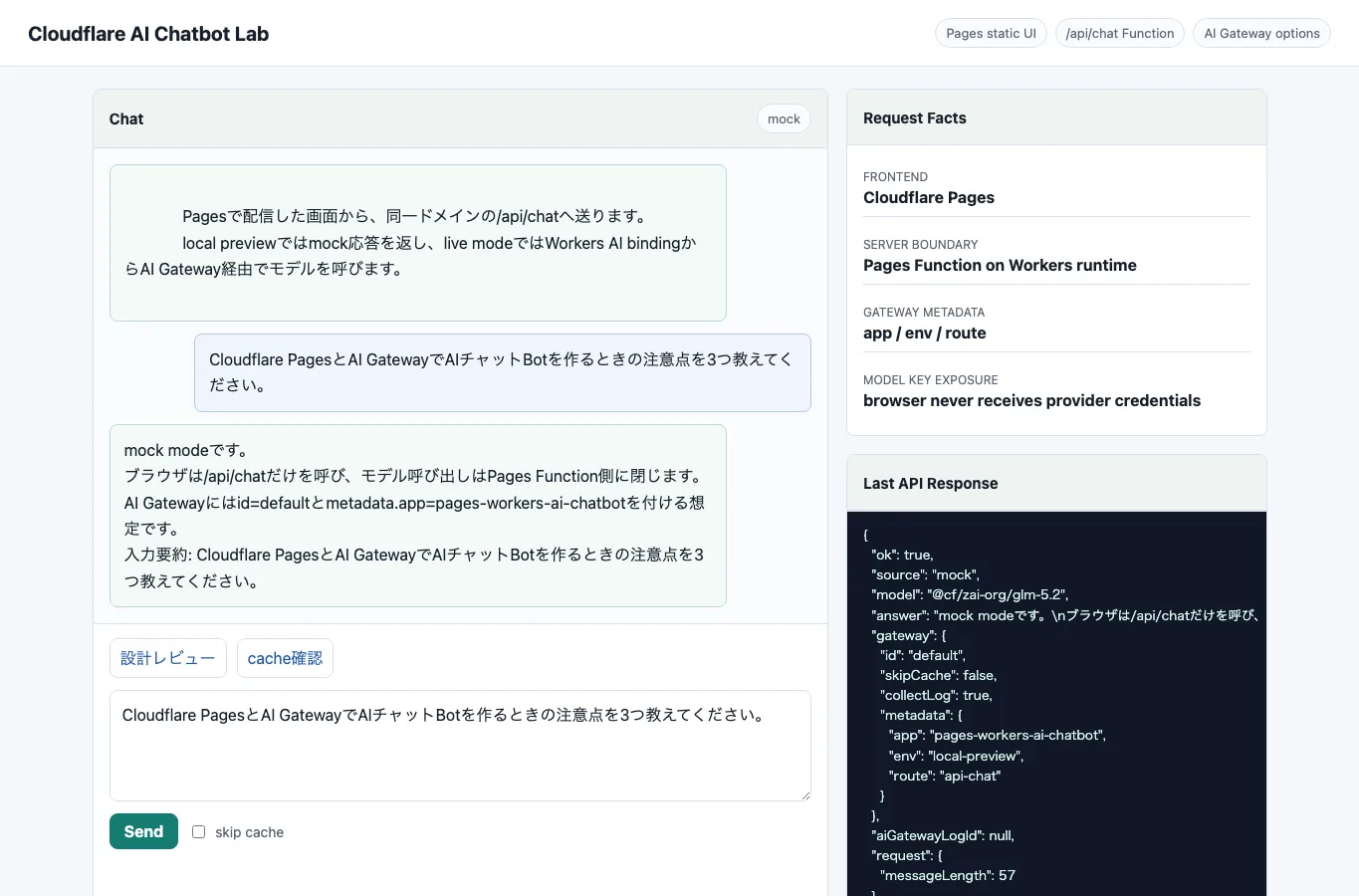
AI Gateway lets you attach arbitrary metadata to requests using the cf-aig-metadata header. Values are limited to string, number, and boolean, and up to five metadata items can be stored.
For example, I might attach information like this:
headers: {
  Authorization: `Bearer ${openaiApiKey}`,
  "Content-Type": "application/json",
  "cf-aig-metadata": JSON.stringify({
    app: "blog-editor",
    env: "staging",
    feature: "title-suggestion",
    user_type: "admin",
    experiment: true,
  }),
}
With this metadata, the way I read logs changes.
Instead of just “gpt-4o-mini errors are up,” I can see “errors are up only in staging title-suggestion,” or “tokens are growing for a specific feature,” or “experimental requests have higher cost.”
One thing to be careful about here is not putting personal information directly into metadata. Even if you include something like a user_id, in public articles or log examples you should abstract it, and in actual operations you should consider hashing or using internal IDs.
Also, this metadata is usable as span attributes in OpenTelemetry integrations, so it becomes useful later when connecting to platforms like Langfuse, Honeycomb, or Braintrust.
Treating Cost as an Estimate
AI Gateway’s cost metric is useful, but should not be treated as the actual billed amount.
According to the official docs, the cost metric is an estimate based on sent and received token counts. For the exact billed amount you need to check the provider’s dashboard.
With that premise, AI Gateway’s cost is well suited for:
- seeing cost trends by model
- checking if tokens increased after a prompt change
- making rough comparisons across providers
- finding unexpectedly expensive requests
- catching budget overrun warnings early
Conversely, it’s weak for month-end reconciliation or accounting-level exact usage.
What matters in AgentOps is treating cost not as an exact billed amount, but as an operational signal. It’s still valuable for finding expensive requests, sudden token spikes, or feature-specific bloat.
What to Think About After Reading Logs
After checking the logs, I don’t stop at “I could see it.”
I organize my thinking around the following points.
First, whether it’s enough for debugging. If I can see prompts, responses, model, token counts, and status, it seems usable for at least basic root cause analysis.
Second, whether it’s usable for cost management. If token counts and cost are visible, it becomes easier to track the impact of model changes or prompt bloat.
Third, whether it’s usable for latency investigation. If duration is visible, I can check delay trends by model and provider.
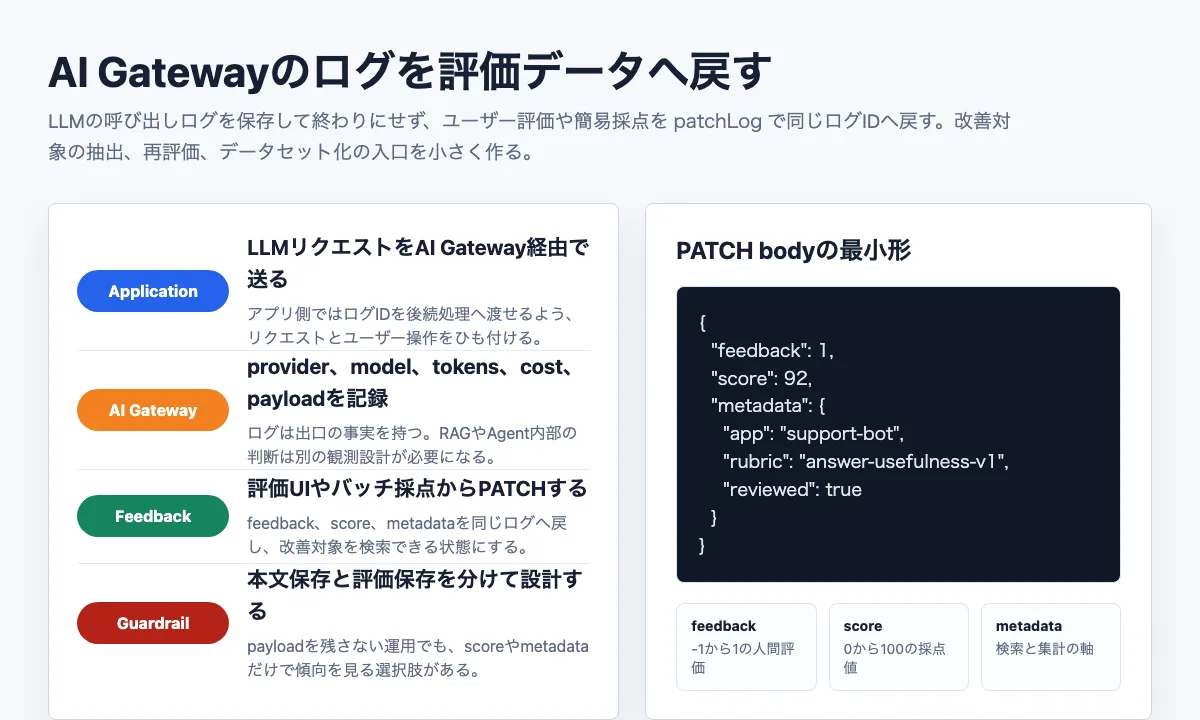
Fourth, whether it’s usable as evaluation data. If the logs retain bodies, there’s potential to later collect failure examples and turn them into evaluation datasets. However, that requires mechanisms for log IDs, feedback, and metadata attachment.
Fifth, security and compliance. Body logs are convenient, but not everything can be retained. For business use, you need policies on retention period, access control, masking, DLP, encryption, and external export.
Looking at all of this, AI Gateway logs are sufficient for reading individual requests. But as operations mature, just eyeballing the dashboard won’t be enough.
For example, the dashboard alone has limits for questions like:
- which feature saw a sudden token spike compared to yesterday
- whether latency degradation is limited to a specific model
- whether I can aggregate only production requests with payload logging disabled
- whether AI Gateway spans can be viewed with the same trace ID as app-side traces
- whether requests flagged by DLP can be audited in a separate storage location
Beyond this point, AI Gateway needs to be treated not as a standalone log viewer, but as the entry point of an observability pipeline.
Connecting Traces with OTel
AI Gateway can export trace spans to an OpenTelemetry-compatible backend.
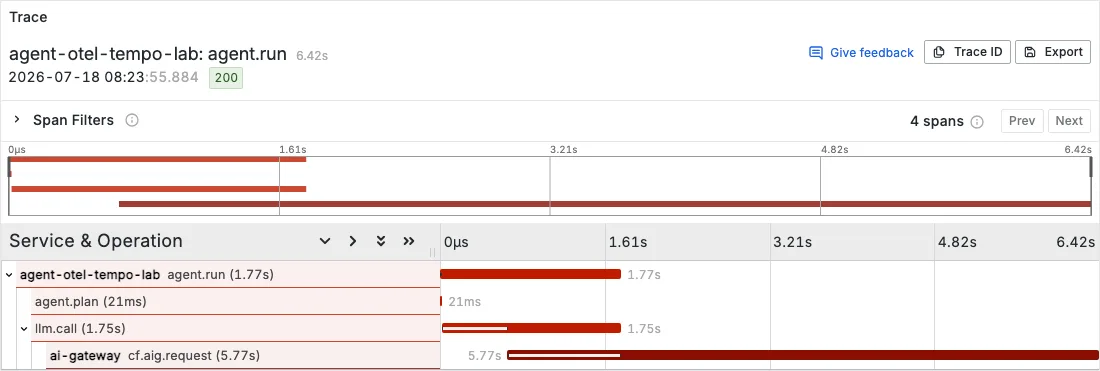
The span includes model, provider, input tokens, output tokens, prompt, completion, cost estimate, and custom metadata. In other words, the LLM request information visible in AI Gateway can be streamed into an existing distributed tracing infrastructure.
What matters here is trace context propagation.
AI Gateway accepts a trace ID and parent span ID with the following headers:
cf-aig-otel-trace-id: <32-character-hex-trace-id>
cf-aig-otel-parent-span-id: <16-character-hex-span-id>
Using these, I can connect application-side traces and AI Gateway-side spans into the same flow.
Thinking about a RAG example, the ideal trace would look like this:
HTTP request
  ↓
auth
  ↓
query rewrite
  ↓
vector search
  ↓
prompt build
  ↓
AI Gateway span
  ↓
post process
AI Gateway alone can’t see query rewrite or vector search. But if I connect it via OTel to app-side traces, I might be able to follow “which app processing step contained which LLM call, how slow and expensive it was, and whether it failed” on the same screen.
This is still unverified in my own environment. So in this article I’m treating it as a “next advanced topic.” But if you’re going to connect AI Gateway to a platform like Langfuse or Honeycomb, this is the first thing to look at.
Feeding Long-Term Analysis with Logpush
Dashboard logs are good for individual investigations. But if you’re thinking about long-term storage, cross-cutting aggregation, auditing, or extracting data for retraining, you’ll want to push them to external storage.
AI Gateway has a mechanism to export logs to external storage using Workers Logpush. The logs are encrypted and are meant to be decrypted and processed by the receiver.
The design question here isn’t the destination itself. It’s what to store at what granularity and for what purpose.
| Purpose | What to store | Notes |
|---|---|---|
| Cost analysis | model, tokens, cost, metadata | cost is an estimate |
| Failure investigation | status, error, duration, provider | design should allow triage even without payloads |
| Quality improvement | prompt, response, feedback | handling of personal and confidential information is heavy |
| Auditing | DLP action, policy, metadata | requires access control and retention period |
| Evaluation dataset | prompt, response, evaluation label | needs consent, anonymization, and purpose statement |
Personally, I want to avoid storing all payloads long-term from the start. I’d rather start with a metadata-centric aggregation format, and explicitly sample only the requests needed for quality improvement.
This is still a design discussion at this point. The remaining verification boundary is Logpush itself: whether streaming to R2 or ClickHouse and aggregating with GraphQL or SQL is enough before keeping full payloads becomes necessary.
How AI Gateway and Langfuse Differ
When you try AI Gateway, you naturally wonder how it differs from Langfuse.
My current hypothesis is that AI Gateway observes the exit to LLM providers. It’s suited for seeing which requests were sent to which provider, with which model, and how many tokens and cost they consumed.
Langfuse, on the other hand, observes the internal processing of the application as traces.
For example, in a RAG pipeline there is a flow: receive user input, rewrite the query, run vector search, pack retrieved documents into the prompt, send to an LLM, post-process the answer, and receive user feedback.
In this flow, AI Gateway alone can show “the final request sent to the LLM,” but it’s hard to see which documents were retrieved, why that prompt was built, or which step caused quality degradation.
So the likely separation of concerns is:
AI Gateway:
  Observe LLM provider requests cross-cuttingly

Langfuse:
  Observe internal LLM processing flows as traces
For a small AI feature, AI Gateway alone might be enough.
But if you’re dealing with RAG, agents, evaluation loops, and user feedback, you’ll need trace design like Langfuse.
Organized by role:
| Aspect | AI Gateway | Langfuse |
|---|---|---|
| What it watches | Exit to LLM provider | Internal LLM processing in the app |
| What it’s good at | model, tokens, cost, duration, status | trace, generation, score, feedback |
| Ease of adoption | Easy to start by swapping a URL | Requires adding instrumentation to app code |
| Failure investigation | Strong at provider call failures | Good at seeing where quality dropped in the flow |
| Evaluation loop | Weak on its own | Easy to connect to scores and datasets |
So rather than choosing one or the other, they differ in entry point.
Right after building a small AI feature, start by making LLM traffic visible with AI Gateway. Later, when you begin handling RAG, agents, evaluation, and user feedback, design internal traces with Langfuse. Then connect the two using AI Gateway’s OTel export or metadata.
This order feels realistic for side projects and small proofs of concept.
Where This Article Lands
What I wanted to check in this article is not that AI Gateway solves all LLM app operations.
Rather, I wanted to see how far it can serve as the first observation point for LLM calls.
LLM apps have become easy to build. A few lines of code can call a model and return a plausible answer.
But the closer you get to production, the more you need to see.
Prompts, responses, token counts, cost, latency, error rates. It’s hard to improve these while they remain invisible.
Can AI Gateway serve as that first visibility layer?
My answer at this point is: “It works for observing the exit to LLM providers.”
In particular, the design where swapping a URL lets you see provider, model, status, duration, tokens, cost, prompt, and response is quite powerful as a first observation layer.
On the other hand, AgentOps is not complete with AI Gateway alone. Internal app traces, RAG search results, agent tool calls, user feedback, and evaluation scores need to be designed separately.
Current Limitations
In this article, I organized AI Gateway’s basic logs and the design concepts for advancing observability. However, there are still items left unverified in terms of implementation.
| Item | Status | Remaining boundary |
|---|---|---|
| Normal-case logs | Verified with minimal code | Dashboard field details should be checked against the actual log view |
| Error-case logs | Cases designed | Invalid model, invalid API key, and invalid body should be compared separately |
| Payload storage control | Organized from official specs | cf-aig-collect-log-payload: false needs a focused behavior check |
| Metadata | Organized from official specs | Filtering by feature, env, and experiment needs a focused behavior check |
| Cost | Organized as an estimate | Decide how to handle the gap from provider billed amounts |
| OTel | Unverified | Export behavior should be checked with a trace backend such as Langfuse or Honeycomb |
| Logpush | Unverified | Long-term export should be checked with storage such as R2 or ClickHouse |
Before jumping to OTel or Logpush, the basic log verification table is the boundary to respect.
Honestly, skipping that boundary and moving straight to “advanced observability” would make the article unfriendly again. The four patterns — normal case, error case, no payload logging, and with metadata — are the minimum set for confirming what is and is not visible on the AI Gateway logs screen. Only after that does it make sense to expand into OTel and Logpush.
As a side note, an LLM app’s real work starts after it “just works.” How do you watch it, how do you fix it, and how do you operate it safely? AI Gateway feels like it’s positioned just right for that entry point.