Publishing a Next.js Static Site on Cloudflare Pages for Free
An experiment log verifying deployment of a Next.js static site to Cloudflare Pages, from local verification and build to production deployment and custom domain setup.

Introduction
When starting a side project, one of the first subtle blockers is the hosting environment.
Before building the app itself, I might want a landing page, a tech blog, or a small media site. But once I actually try to launch, a flood of small decisions hits at once: hosting, custom domain, SSL, build settings, environment variables, and deployment methods.
Vercel or Netlify would work right away. But Cloudflare Pages is also a strong option. For static sites, it is easy to publish within the free tier, handles custom domains well, and serves from Cloudflare’s CDN.
In this article, I will walk through the flow of publishing a static site to Cloudflare Pages, using a site I actually deployed as the example.
Here is the target site.
https://bukei-wisdom.com/ Bukei no Keifu (Lineage of Strategy) A treasury of wisdom analyzing the strategic decisions of historical heroes through classical teachings and exploring their modern applications https://bukei-wisdom.com/
“Bukei no Keifu” is a static site covering Eastern classics and military strategy texts. It is built with Next.js and deployed to Cloudflare Pages.
What I Published This Time
I published a static site built with Next.js.
Browser
  ↓
Cloudflare Pages
  ↓
Next.js static export
The target project lives under the app directory of the “Bukei no Keifu” project locally.
bukei_shichisyo/The app itself is under app.
bukei_shichisyo/
  app/
    package.json
    wrangler.toml
    out/
I verified six things this time.
- Whether the Next.js site displays locally
- Whether the Next.js static build passes
- Whether the sitemap is generated
- Whether the Cloudflare Pages output directory is set to
out - Whether the Cloudflare Pages production deployment succeeds
- Whether the site displays on the custom domain
bukei-wisdom.com
To state the conclusion upfront, the flow of publishing a Next.js static site on Cloudflare Pages works.
However, the Build command and Root directory are not always easy to see on the Cloudflare Dashboard. This article verifies the deployment configuration based on the Wrangler CLI and wrangler.toml settings.
Why Use Cloudflare Pages
For static site hosting, there are several options: Vercel, Netlify, GitHub Pages, and others.
The reason I chose Cloudflare Pages is because it is easy to expand into other Cloudflare services later.
A static site alone is enough to start. But as I keep developing personal projects, I eventually want to add contact forms, image delivery, APIs, authentication, bot protection, and AI features.
Starting with Cloudflare Pages makes it easy to expand into Workers, R2, KV, D1, Turnstile, and AI Gateway. I do not have to use everything from the start, but having room to expand later is reassuring.
For “Bukei no Keifu,” I focused on publishing it as a static site first. There is no database or authentication involved; I am just confirming that Cloudflare Pages works as a hosting environment.
Verifying Locally
First, I display the Next.js site locally.
cd bukei_shichisyo/app
npm install
npm run dev
Locally, it displayed at localhost:3000.

What I checked here was not the site design itself. Before sending it to Cloudflare Pages, I confirmed that at least the top page renders locally and that the main navigation and cards are not broken.
Keeping a working local state before investigating production issues makes it easier to isolate problems later.
Building
Next, I build for production.
npm run buildIn this project, next-sitemap runs after build.
In package.json, the scripts look like this.
{
  "scripts": {
    "build": "next build",
    "postbuild": "next-sitemap"
  }
}
After actually building, I confirmed that next-sitemap completed successfully.
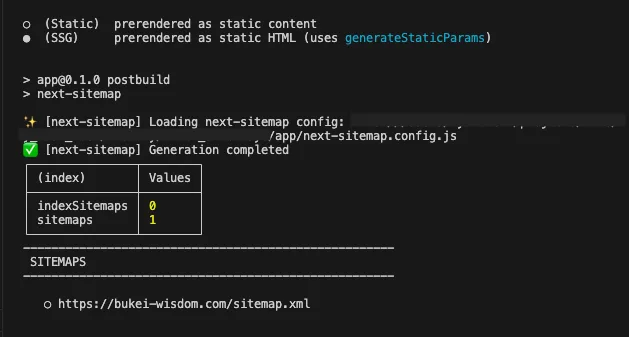
The screenshot shows https://bukei-wisdom.com/sitemap.xml as a generation target.
This is subtle but important. For publishing a static site, having HTML rendered is the bare minimum. But if you care about search traffic, you should verify that the sitemap is generated too.
Cloudflare Pages Configuration
The Cloudflare Pages configuration is in app/wrangler.toml.
name = "bukei-wisdom"
compatibility_date = "2024-01-15"
pages_build_output_dir = "out"
compatibility_flags = ["nodejs_compat"]

[env.production]
name = "bukei-wisdom"
compatibility_flags = ["nodejs_compat"]

[env.preview]
name = "bukei-wisdom-preview"
compatibility_flags = ["nodejs_compat"]
The actual settings screen looks like this.
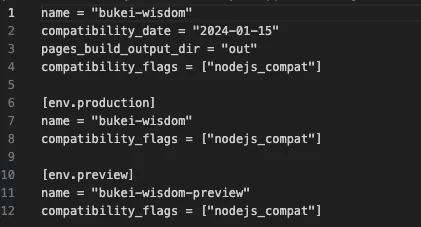
The two things to look at here are:
name = "bukei-wisdom"
pages_build_output_dir = "out"
name is the Cloudflare Pages project name. pages_build_output_dir is the output directory for static files that Cloudflare Pages deploys.
In this project, I am using out. Astro often uses dist, but Next.js static exports may use out depending on the configuration. If this is wrong, the build may pass but Cloudflare Pages will not find anything to serve.
Deploying
On the Cloudflare Pages side, the project is named bukei-wisdom.
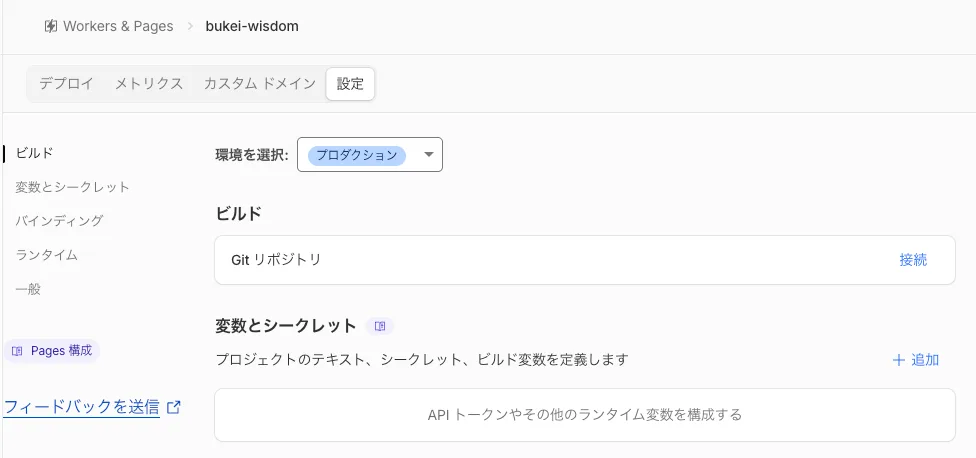
In this deployment, I could not confirm the detailed values for Build command and Root directory on the Cloudflare Dashboard. This is because the workflow is Wrangler CLI-centered rather than Git-connected build settings.
Therefore, instead of Dashboard build settings, this article relies on two things.
pages_build_output_dir = "out"inwrangler.toml- The Cloudflare Pages scripts in
package.json
package.json has the following scripts for Cloudflare Pages.
{
  "scripts": {
    "pages:build": "npx @cloudflare/next-on-pages",
    "pages:deploy": "npm run pages:build && wrangler pages deploy",
    "deploy:production": "npm run build && npm run pages:build && wrangler pages deploy"
  }
}
Deployment basically follows this flow.
npm run build
npm run pages:build
wrangler pages deploy
Or use the combined script.
npm run deploy:productionThe Cloudflare Pages production deployment succeeded, and bukei-wisdom.com and bukei-wisdom.pages.dev are linked.

On this screen, I can confirm the Production environment, main branch, successful deployment status, and published domains.
Displaying on a Custom Domain
Finally, I verify that it displays on the custom domain.
The production URL is:
https://bukei-wisdom.com/When I actually access it, the “Bukei no Keifu” top page is displayed via Cloudflare Pages.

On the Pages production deployment screen as well, I can confirm the following two domains.
bukei-wisdom.com
bukei-wisdom.pages.dev
On Cloudflare Pages, the pages.dev URL alone is enough to publish. But considering search, social sharing, and how visitors perceive the site, setting up a custom domain makes it easier to treat as a proper site.
This time as well, I ultimately assume bukei-wisdom.com will be the primary URL.
Where You Actually Get Stuck
Through this exercise, I found three things to watch out for when publishing a static site on Cloudflare Pages.
The first is the output directory.
Depending on the framework and configuration, the directory to serve changes: dist for Astro, out for Next.js static export, and so on. In this configuration, pages_build_output_dir = "out" in wrangler.toml was important.
The second is that the information visible on the Cloudflare Dashboard does not always match the actual deployment workflow.
If you use Git-connected build settings, the Build command and Root directory are easy to see on the Dashboard. But if you deploy Wrangler CLI-centered, the Dashboard alone does not necessarily reveal all settings. This time, I verified the deployment configuration by looking at wrangler.toml and the scripts in package.json.
The third is the sitemap.
If the site displays, a sitemap is not strictly required. But if you expect search traffic, it is better to verify that sitemap.xml is generated. In this build log, I confirmed that next-sitemap targeted https://bukei-wisdom.com/sitemap.xml for generation.
What I Learned from This Article
Cloudflare Pages is fully usable for publishing a Next.js static site.
In this real-world example, I verified local display, Next.js build, sitemap generation, Wrangler configuration, Production deployment, and custom domain display.
Especially, explicitly setting pages_build_output_dir = "out" in wrangler.toml makes it clear what Cloudflare Pages will serve. Trying to track settings through the Dashboard alone leaves blind spots, so keeping configuration in the repository is important.
In personal development, establishing a state where you can publish and continuously fix things matters more than building the site itself.
Once you get a site published through Cloudflare Pages, it becomes a foothold for expanding into Workers, R2, D1, Turnstile, and AI Gateway later. “Bukei no Keifu” was published as a static site this time, but having it on Cloudflare also makes it easier to add forms, analytics, and AI features in the future.
As a side note, publishing a verification article before the evidence is ready weakens the article. Verification articles are stronger when accompanied by screenshots or logs that show what actually worked.